Master Your Terminal Workflow: A Step-by-Step Guide to Yazi File Manager
Learn to install and use Yazi, a fast terminal file manager with async support, previews, and search. This guide covers setup and key features.
Introduction
If you spend a lot of time in the Linux terminal, you may be familiar with the classic ls and cd dance to navigate files. While effective, it can feel clunky compared to a graphical file manager. Enter Yazi, a blazingly fast, asynchronous file manager written in Rust that runs entirely in your terminal. It combines the efficiency of the command line with a modern, user-friendly interface. In this guide, you’ll learn how to install, launch, and make the most of Yazi’s features—like code highlighting, image previews, and powerful search—step by step.
What You Need
- A Linux distribution (instructions cover Arch, Ubuntu/Fedora, and more)
- Terminal emulator (e.g., GNOME Terminal, Konsole, Alacritty)
- Basic familiarity with the command line
- Internet connection for installation
- Optional:
ueberzugorchafafor image previews,batfor enhanced code highlighting
Step-by-Step Guide
Step 1: Install Yazi
Yazi is available in many official repositories and via third-party package managers. Choose your distro below:
- Arch Linux / Manjaro:
sudo pacman -S yazi - Ubuntu / Debian: Use the PPA or install from source. Better yet, use
cargo(see below). - Fedora / RHEL: Yazi is in COPR:
sudo dnf copr enable atim/yazithensudo dnf install yazi - Any distro with Rust: Install via
cargo:cargo install yazi - Snap / Flatpak: Yazi may be available experimentally.
After installation, verify with yazi --version. Install optional dependencies like ueberzug for image support (sudo apt install ueberzug on Debian/Ubuntu).
Step 2: Launch Yazi
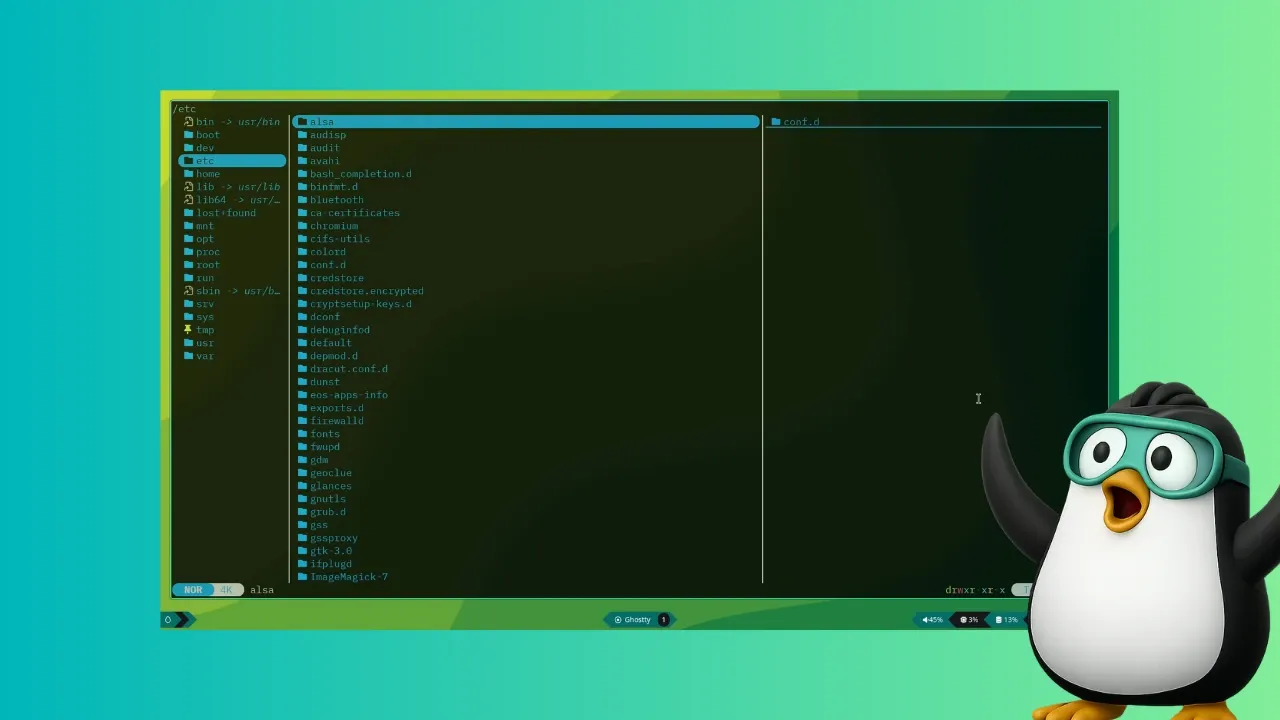
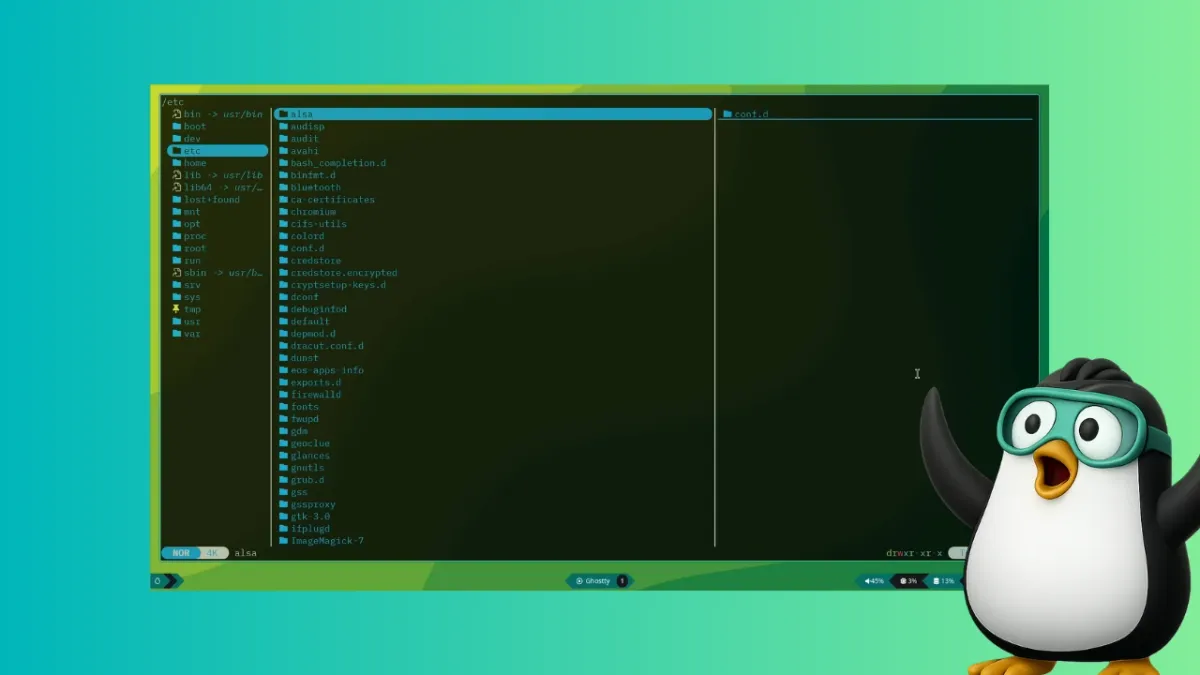
Open your terminal and simply type yazi. The interface appears instantly. You’ll see a three-pane layout: the left pane shows the directory tree (or parent directory), the middle pane lists files, and the right pane shows a preview of the selected item.
Alternatively, start Yazi from a specific directory: yazi /home/user/Documents.
Step 3: Navigate Like a Pro
Yazi supports both arrow keys and Vim-style keys. Use the up/down arrows or j/k to move through files. Press Enter to open a directory; press Backspace or h to go up. To quickly jump to a parent folder, press p. The search bar (triggered with /) lets you find files by name instantly.
Pro tip: Press Space to toggle selection of multiple files, then d to delete selected items (after confirmation).
Step 4: Preview Files Without Opening Them
One of Yazi’s standout features is its live preview pane. As you navigate, the preview automatically updates to show:
- Plain text (with
batsyntax highlighting if installed) - Images (via
ueberzugorchafa– requires a terminal that supports true color) - PDFs and videos (limited thumbnail support)
To enable image preview, ensure ueberzug is in your PATH. On supported terminals (like Kitty, iTerm2, or with chafa), images appear inline. Otherwise, Yazi falls back to text-based previews.
Step 5: Search and Manipulate Files
Yazi includes a powerful fuzzy-finder built in. Press / to activate search—start typing, and results narrow down in real-time. You can also use regular expressions for advanced queries.
File operations are quick:
- Copy selected files: y then navigate to target and p to paste.
- Rename: Press r on a file to edit its name inline.
- Create new file/folder: Press a and choose type.
- Delete: Press d (moves to trash if supported, otherwise permanent).
All operations are asynchronous, meaning the interface stays responsive even when processing large directories.
Step 6: Customize Yazi (Optional)
Yazi reads a configuration file at ~/.config/yazi/yazi.toml. You can tweak:
- Theme (colors, icons)
- Keybindings (remap any action)
- Preview size and behavior
Example: To set a custom color scheme, add a [theme] section. Check the official Yazi documentation for full options.
Tips for a Smoother Experience
- Combine with tmux: Run Yazi inside a tmux session for persistent file management even when you disconnect.
- Use
batfor better code previews: Installbatand Yazi will automatically use it for syntax highlighting. - Master the keybindings: Press ? inside Yazi to see a cheat sheet of all commands.
- Set Yazi as default file manager: You can edit
~/.config/mimeapps.listto handleinode/directorywith Yazi, but be cautious—it’s terminal-only. - For image-heavy workflows: Use kitty terminal for native image support without extra dependencies.
Yazi may be the terminal file manager you never knew you needed—but once you try it, you’ll wonder how you managed without it. Happy navigating!